
PASSWORD MANAGER
OVERVIEW
This program offers notepad like writing surface that can contain up to 16 pages of typed text that will be stored in an encrypted text file using the password supplied during setup. Each time you run the program, the only way to access the file is to enter the correct password.
The writing surface can store anything—names, addresses, passwords, credit card information—that you want to leave on your PC but want to keep away from prying eyes.
The first time you run the program, it will prompt you for a password. From that point on, the program knows what your password is NOT—it does NOT store the password, but a hash that validates the password. You cannot open an encrypted file without supplying the correct password.
To save pointing and clicking through a file browser, and to avoid leaving tracks on your computer that would identify the files it is using, the program, when initiated by a click on the icon, automatically opens “Password Manager.pwf” in the folder that contains the program (.exe) file.
To use more than one encrypted content file with the program, all you have to do is drag and drop a valid .pwf onto the icon, or create multiple shortcut files or .bat files like this: “c:\myfolder\password manager.exe myfile.pwf”.
To keep things simple, there is no export or import function. This is text data, so to build your file --either type it in, or highlite a block of text from some other program, then copy (ctrl-c) it to the clipboard. Toggle (Alt-tab) to the Password Manager and press paste (ctrl-v). Do the reverse to export data.
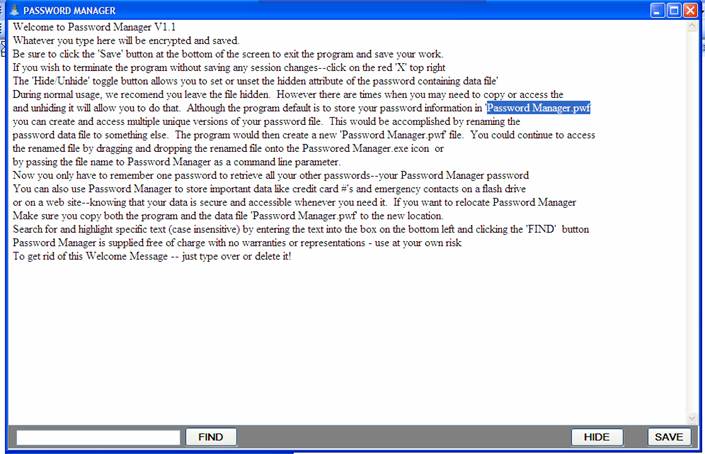
If you want to find some text—type it into the text box and click find. If the text is not found you will get an error message. If it is found, the text will be selected and you can scroll down to it using the right scroll bars.
Again, to keep it simple, the program has two ways to exit—click the red X on the top right of the form window-that will exit without saving any changes made during this session, or click the SAVE button, to save the content.
We said earlier you could save and access multiple files—but since you cannot “SAVE AS” how do you create them? Toggle the HIDE/UNHIDE button, and you will find the Password Manager.pwf file in the program’s folder. Copy it to your desktop or wherever, and rename it if you want to keep several versions in the same folder. When you re-run Password Manager, it will continue to open the original file—unless you drag and drop one of the copied files onto its icon.
To move the icon from the Start Menu to your desktop, navigate to the Program Manager menu item, hover over it and right click, you should see an option to create a shortcut. Select it.
The Program utilizes Blowfish Encryption © David Ireland, DI Management Services Pty Ltd <http://www.di-mgt.com.au>.
The program was written using Visual Studio 2008 and
requires that you have Windows .Net Framework 2.0 installed. The .Net framework provides a replacement for
the older windows API interface and provides a feature rich, secure environment
for program development. Get your free
copy directly from Microsoft--here: Click.
Although all our programs use Blowfish encryption, it is not compatible with other implementations, and we do not even guarantee compatibility with prior or future releases of this or the Text Encryption Tool. Therefore, all the persons who will be sharing encrypted messages or files must be running the same version at the same time.
INSTALLATION
Just run the program, and it will lead you through the auto install with the following screen:
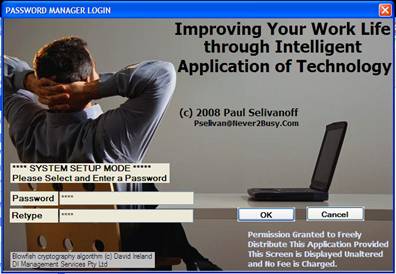
Once you have entered a password and clicked OK, you will see the main notepad form like this:
Questions/Comments can be addressed to info@never2busy.com
Visit our Web Site: http://www.never2busy.com